
Your Microsoft 365 sign-in expired after a period of inactivity
If you don’t access you Microsoft 365 account from within monday.com for a prolonged period, Microsoft will prevent access to your account.
Any automations you attempt to run will fail with the following message:
For security reasons, your Microsoft 365 sign-in expired after a period of inactivity. Reauthenticate with Microsoft to resolve this. View https://inactivity.m365.app/ for more details.
.png?inst-v=5fab9756-5517-4b79-8033-0871a276b71d)
From workflows
If this is a workflow, re-authenticate with Microsoft by clicking on “+ Add new account” in the workflow:
.png?inst-v=5fab9756-5517-4b79-8033-0871a276b71d)
From automations
If this is an automation and contains the credentials field, re-authenticate with Microsoft by clicking on “+ Add new account” in the automation:
.png?inst-v=5fab9756-5517-4b79-8033-0871a276b71d)
From legacy automations
If your automation was created from a template looking something like the screenshot below, it’s an old-style legacy automation.
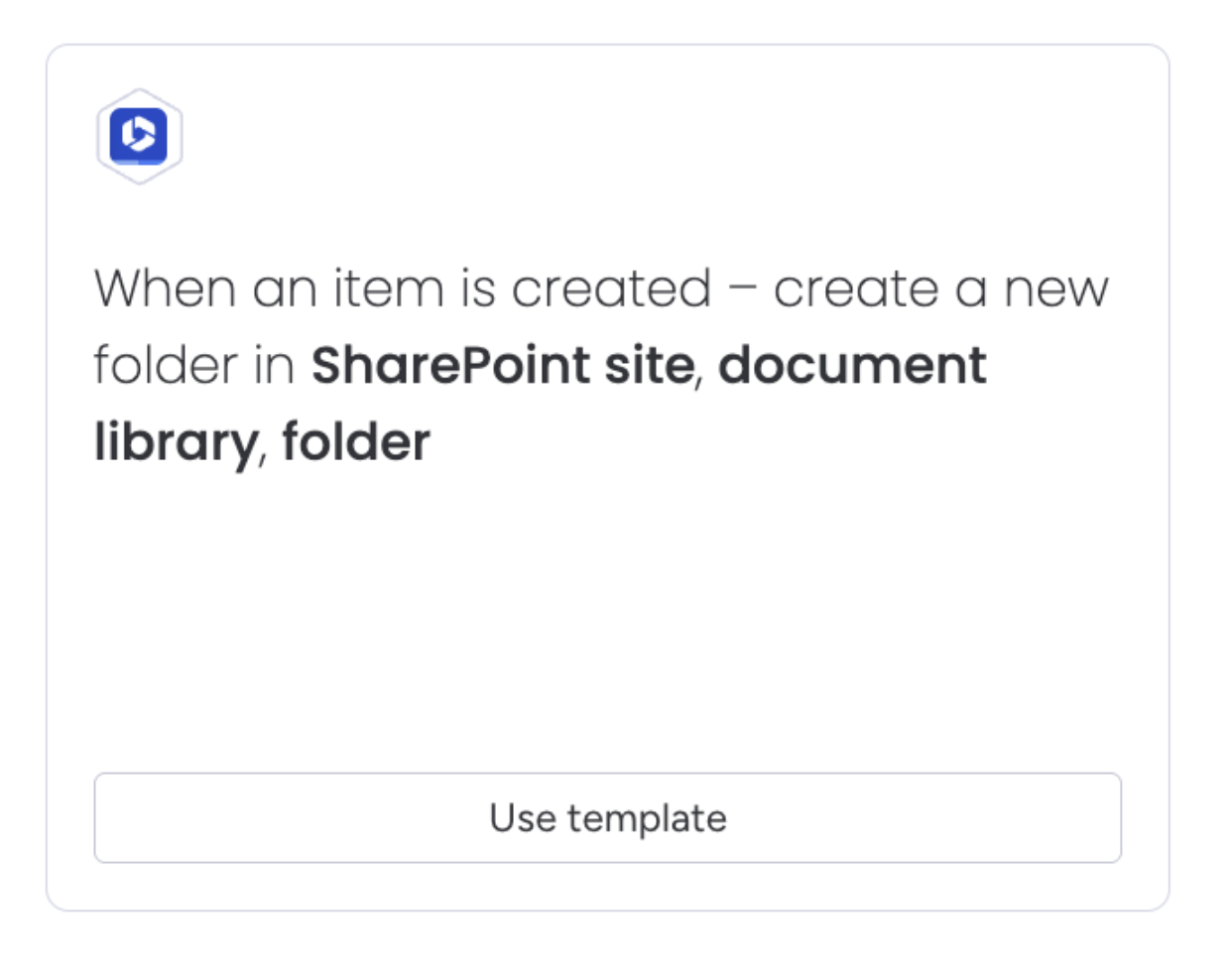
These have no credentials field, then you’ll have to add a Secure Embed, sign out and then sign back in.
This is detailed in Revoking access to Microsoft 365, under the heading “Revoking access for individual users”.
Once signed out of Microsoft 365, don’t forget to sign back in again. Having done this, trigger the automation again, and it should now work with the new Microsoft sign-in credentials.